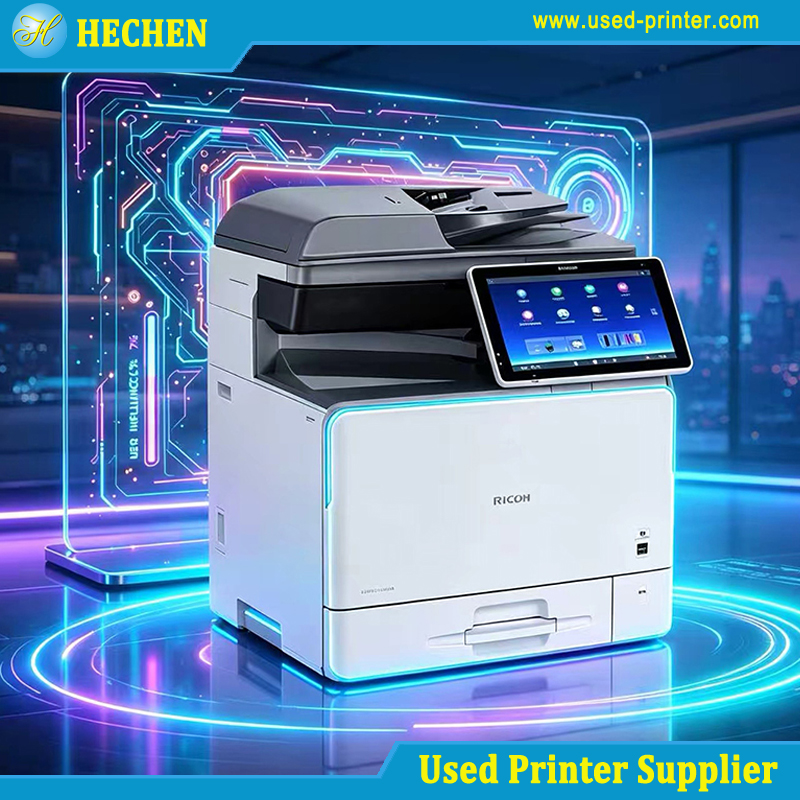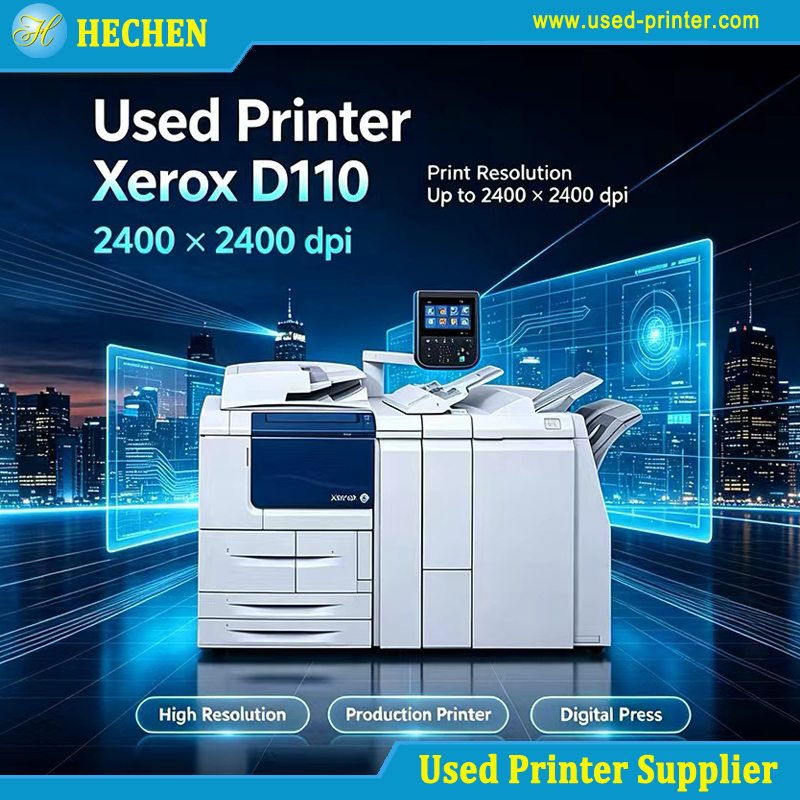
Purchasing a refurbished printer is one of the most cost-effective strategies for modern offices, creative studios, and home workspaces aiming to secure high-performance hardware at a fraction of retail pricing. From commercial-grade laser multifunction printers (MFPs) to high-precision wide-format inkjet plotters, enterprise-tier refurbished units frequently deliver robust durability and feature sets that far surpass budget-friendly new consumer models.
However, integrating a refurbished printer into a modern workstation or enterprise network infrastructure presents unique technical challenges. Unlike brand-new devices shipped with production-line software and current factory settings, a refurbished unit arrives with an operational history. It may carry legacy firmware, outdated onboard drivers, modified network parameters, or custom security profiles left behind by its previous deployment.
If these system layers are not audited, synchronized, and configured correctly, users encounter standard compatibility bottlenecks: unhandled print spooler errors, mismatched Page Description Languages (PDL), missing scanner protocols, Wi-Fi security handshake failures, or total network unreachability.
To ensure your refurbished equipment integrates seamlessly into your digital workflow, follow this comprehensive, step-by-step guide to auditing and configuring firmware, drivers, and network compatibility.
1. Auditing and Updating Printer Firmware
Firmware is the embedded operating system running directly on the printer’s internal system board (formatter board). It controls hardware mechanisms, processes incoming raster data, manages onboard network stacks, and enforces security protocols. On a refurbished unit, firmware is frequently out of sync with current desktop operating systems and network infrastructure.
Step 1: Identifying the Current Firmware Revision
Before modifying software settings, determine the precise firmware version installed on the unit:
Configuration / Status Page: Access the printer’s physical front control panel, navigate to Settings / Maintenance / Reports, and print a Configuration Page (or Printer Status / Summary Page). This report clearly states the current Firmware Version, Engine Revision, Controller ID, and Serial Number.
Embedded Web Server (EWS): If the unit is connected via Ethernet cable to a local subnet, type its IP address into a Web browser URL bar to access the EWS interface. Locate the Device Information or About section to view the installed firmware build.
Step 2: Cross-Referencing OEM Release Notes
Navigate to the Original Equipment Manufacturer's (OEM) official support portal (e.g., HP, Canon, Epson, Lexmark, Xerox) using the exact model number. Locate the downloads page for firmware and inspect the Release Notes or ReadMe documentation.
Operating System Updates: Verify whether newer firmware updates add support for modern workstation operating systems (such as Windows 11, macOS Sequoia/Sonoma, or modern Linux kernels).
Protocol & Security Patches: Modern security standards like TLS 1.3, updated SNMPv3 encryption, and Secure Boot protocols are often added in later firmware releases. Legacy firmware may rely on deprecated protocols (such as SMBv1 or TLS 1.0/1.1) that modern operating systems actively block.
Bug Fixes: Check if known hardware control bugs, sleep mode wake-up errors, or memory leak issues were resolved in subsequent revisions.
Step 3: Performing a Safe Firmware Upgrade
Updating firmware on refurbished hardware requires strict adherence to safe procedures to prevent corrupted flash memory (bricking):
Establish a direct connection: Perform firmware updates over a stable, wired Ethernet connection or direct USB cable. Never flash firmware over a standard wireless connection or intermittent Wi-Fi link.
Select the correct method: Use official update utilities provided by the manufacturer (such as HP Web Jetadmin, Canon Firmware Update Tool, or Epson Net Config), or upload the binary
.rfu/.binfirmware file directly through the printer's EWS Firmware Upgrade tab.Maintain continuous power: Ensure the unit is plugged into an Uninterruptible Power Supply (UPS) or stable electrical outlet during flashing. Do not interrupt power or restart the machine until the front panel confirms complete initialization.
2. Verifying Operating System and Driver Compatibility
Even with updated firmware, a refurbished printer cannot render documents correctly without compatible, clean printer drivers installed on host workstations. Drivers translate desktop application file data into machine-readable command languages.
Step 1: Understanding Print Languages (PDL Compatibility)
Different print applications and operating systems rely on specific Page Description Languages (PDLs). Determine which driver type aligns best with your operational demands:
PCL 6 (Printer Command Language): The standard choice for general office environments, text documents, spreadsheets, and routine administrative tasks across Windows environments. It offers rapid processing and minimal network payload overhead.
PostScript 3 (PS): The industry standard for graphic design, CAD publishing, publishing software, and macOS/Linux systems. PostScript drivers deliver exact color management, vector scaling, and font rendering precision across non-Windows operating systems.
Generic / Universal Print Drivers (UPD): OEM Universal Drivers provide broad fallback compatibility across entire fleets, though they occasionally lack support for proprietary hardware accessories like multi-bin finishers, staplers, or specialized tray selections.
Step 2: Host Operating System Architecture Match
Ensure the drivers downloaded match the target host operating system architecture:
64-bit vs. ARM Architecture: Modern workstations (including Apple Silicon M-Series Macs and modern Windows on ARM hardware) require native 64-bit or ARM-compatible print drivers. Legacy 32-bit drivers retrieved from original installation media or legacy driver repositories will fail to install or run stably.
OS-Specific Print Frameworks: Verify whether macOS requires AirPrint driverless architecture or dedicated vendor driver packages to access advanced finishing options (such as duplexing, booklet folding, or punch units).
Step 3: Clearing Legacy Driver Conflict Artefacts
Refurbished printers are often installed as replacements for older models on existing workstations. Residual registry keys and older driver binaries can create spooler conflicts:
Open the Print Management console (
printmanagement.msc) in Windows or Printers & Scanners settings in macOS.Purge all legacy print queues associated with the previous hardware.
Stop and restart the Windows Print Spooler Service (
net stop spoolerfollowed bynet start spooler) to flush orphaned spooler tasks.Perform a fresh, clean installation using the manufacturer's latest driver package extracted directly to the host machine.
3. Auditing Network Infrastructure and Protocol Compatibility
Network compatibility issues are among the most common friction points when deploying refurbished printers. Equipment previously integrated into enterprise environments frequently retains static IP configurations, custom subnets, VLAN assignments, or restrictive security policies set by past administrators.
Step 1: Resetting Legacy Network Settings
Before introducing a refurbished printer to your local network, execute a network network settings reset or perform a complete factory cold reset via the physical administration menu:
Wired Ethernet: Performing a reset returns the network interface card (NIC) to DHCP (Dynamic Host Configuration Protocol) mode, allowing your local router or DHCP server to assign a clean IP address automatically.
Host Name Cleansing: Clearing legacy hostname entries prevents DNS name resolution collisions across local domain controllers and routers.
Step 2: Validating TCP/IP Architecture & IP Allocation
Once assigned a DHCP address, check the configuration page or router interface to confirm basic communication:
Static IP Reservation: To ensure print queues on workstations do not drop off when the lease expires, set a permanent DHCP Reservation on your network gateway/router mapped directly to the printer's Media Access Control (MAC) address. Alternatively, assign a manual Static IP outside the dynamic DHCP allocation pool.
Subnet & Gateway Matching: Verify that the subnet mask (e.g.,
255.255.255.0) and Default Gateway address match your active workstation local subnet precisely.
+-------------------------------------------------------------------+
|                  Local Subnet Compatibility Check                 |
+-------------------------------------------------------------------+
|  Gateway / Router IP:    192.168.1.1                              |
|  Workstation IP:         192.168.1.45                             |
|  Printer Target IP:      192.168.1.200 (Static / Reserved DHCP)   |
|  Subnet Mask:            255.255.255.0                            |
+-------------------------------------------------------------------+
Step 3: Wireless Security Protocol Audit (Wi-Fi Models)
If your refurbished unit includes a wireless network module, verify its physical hardware capabilities against modern wireless security standards:
Encryption Standards: Modern wireless routers often enforce WPA3-Personal/Enterprise or WPA2-AES. Older refurbished printers manufactured prior to these releases may only support legacy WPA or obsolete WEP protocols.
Band Support: Verify whether the printer's wireless module supports 5 GHz or 6 GHz bands, or if it is strictly restricted to 2.4 GHz. If restricted to 2.4 GHz, ensure your wireless access point broadcasts a dedicated or dual-band 2.4 GHz SSID.
4. Testing Print Ports and Network Services
Once physical connectivity is verified, test the communication ports and protocols running between your desktop computer and the refurbished printer.
Step 1: Core Diagnostic Commands
Execute basic diagnostic commands from a command terminal (Windows Command Prompt, PowerShell, or macOS Terminal) to confirm line-of-sight network connectivity:
ICMP Ping Test:
Bashping 192.168.1.200
Expectation: 0% packet loss and response times under 10ms over local network.
Port Reachability Test (Telnet / PowerShell Test-NetConnection):
PowerShellTest-NetConnection -ComputerName 192.168.1.200 -Port 9100
Key Ports to Verify:
Port 9100 (RAW / JetDirect): Primary standard port used for raw print jobs.
Port 515 (LPR/LPD): Legacy Line Printer Daemon port.
Port 631 (IPP / IPPS): Internet Printing Protocol (required for AirPrint and secure encrypted print streams).
Port 80 / 443 (HTTP / HTTPS): Necessary for web browser access to the Embedded Web Server.
Step 2: Adjusting Network Security & Discovery Protocols
If diagnostic commands fail despite correct IP addressing, access the printer's Embedded Web Server (EWS) to check security toggles:
Enable Standard Port Protocols: Ensure RAW (Port 9100) or IPP services are toggled ON. Refurbished units hardened by previous corporate enterprise IT teams frequently disable unused ports for security compliance.
Multicast DNS (mDNS / Bonjour): Ensure mDNS discovery is enabled if deploying on macOS environments or relying on mobile print discovery.
WS-Discovery / UPnP: Enable WS-Discovery if installing on Windows 10/11 using automatic network device discovery tools.
5. End-to-End Verification and Calibration Testing
After completing firmware flashing, driver installation, and network protocol alignment, perform a final systematic functional audit to verify real-world operational stability.
Diagnostic Checklist Table
| Audit Area | Diagnostic Task | Target Result / Validation Standard |
| Firmware | Print Status Page / EWS Summary | Firmware revision matches the latest download build on the official OEM support site. |
| Driver | Print Windows Test Page | Text renders cleanly without garbage characters; duplex unit and paper trays register accurately. |
| PDL Rendering | Complex PDF / Vector Document Test | Fonts render without substitution errors; high-resolution images scale cleanly without spooler crashes. |
| Network IP | Continuous Ping & Reboots | IP address remains constant across device power cycles without dropping network packets. |
| Scanner/SMB | Scan-to-Folder / Scan-to-Email Test | Network scanning transmits reliably via modern SMBv2/v3 protocols without transmission errors. |
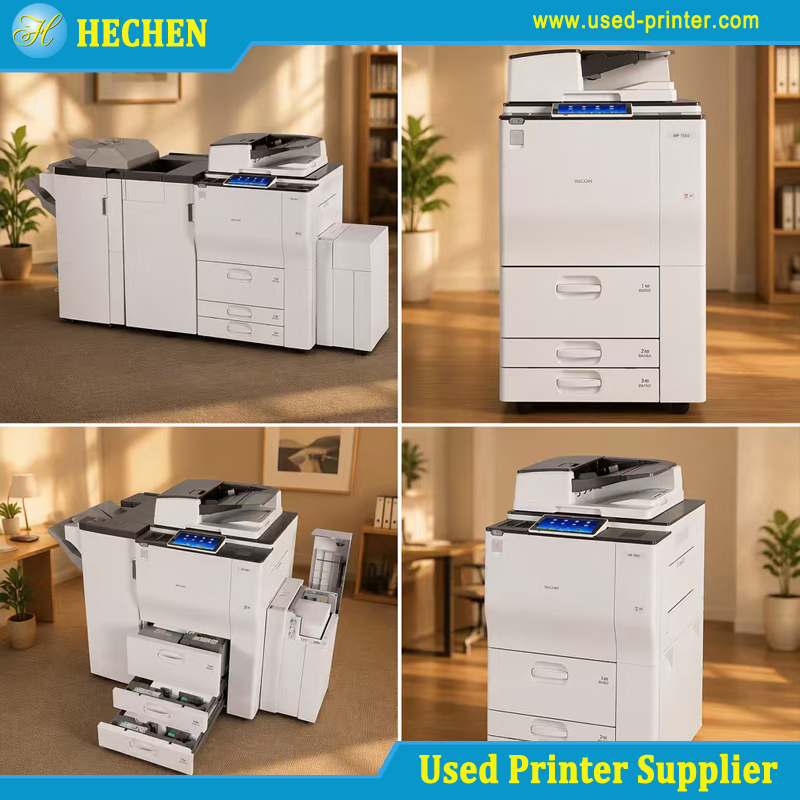
Summary and Key Takeaways
Integrating a refurbished printer into a modern computing environment requires auditing three distinct technical layers:
Update Embedded Firmware: Flash outdated system code to restore compatibility with current operating systems, secure network encryption standards, and bug fixes.
Deploy Clean Drivers: Install matching 64-bit/ARM native PCL or PostScript drivers, purging legacy spooler remnants to eliminate formatting anomalies and queue lockups.
Reconfigure Network Settings: Perform a network factory reset, set dynamic or static IP assignments, audit wireless encryption parameters, and confirm that required communication ports (Port 9100, IPP, HTTPS) are unblocked.
By following this methodical audit process, you eliminate software bottlenecks, protect your local network infrastructure, and unlock the full long-term value of your refurbished hardware investment.
Recommended linking:
How to Choose a Suitable Refurbished Printer for Different Business Uses
Recommend related products: