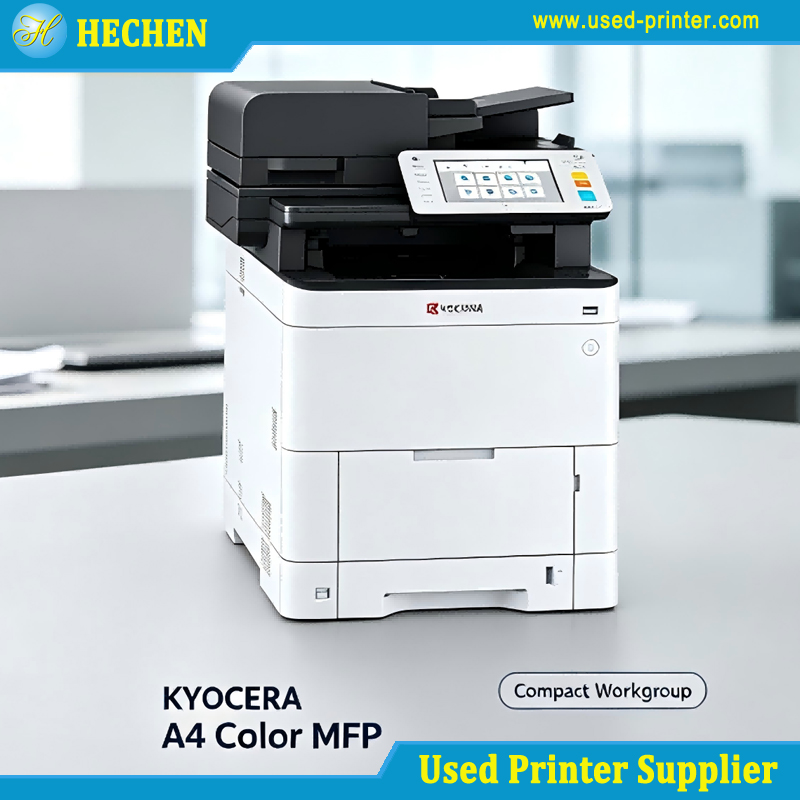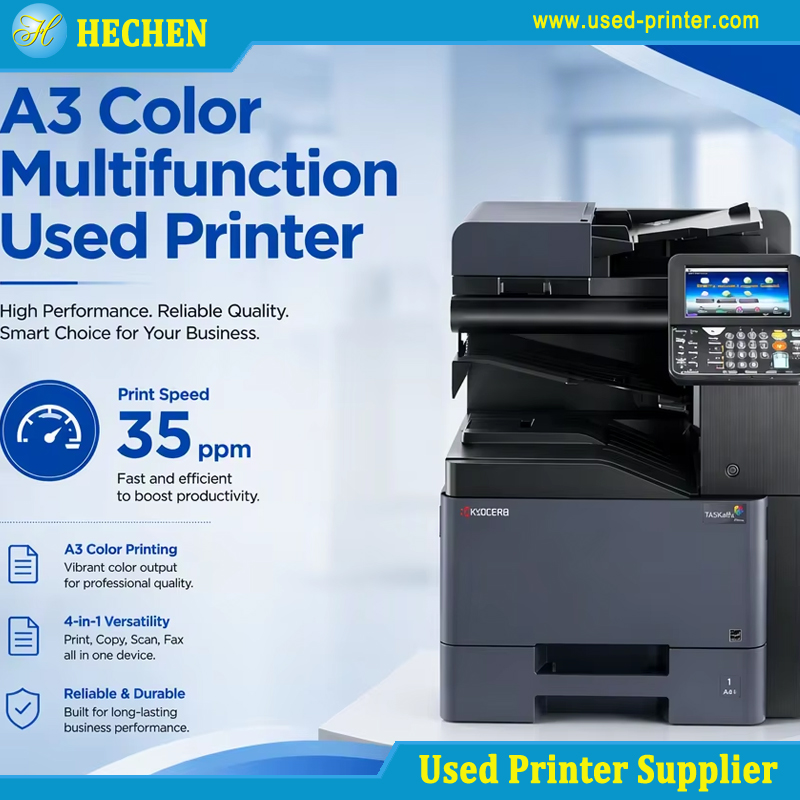
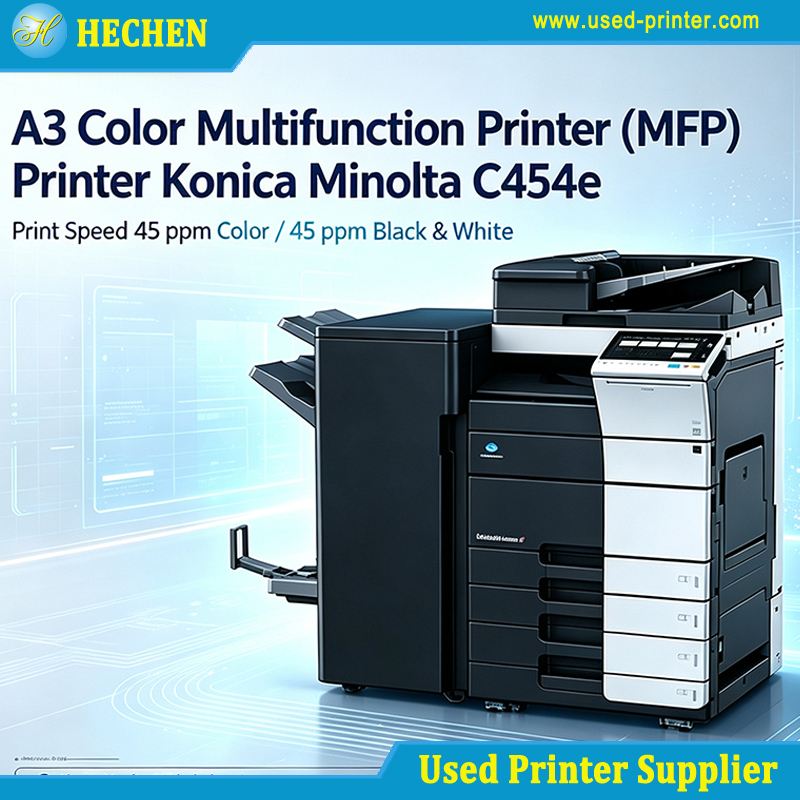
Purchasing a pre-owned or refurbished laser printer is an attractive proposition for home offices and businesses alike. High-end commercial laser printers can cost thousands of dollars when brand new, yet second-hand units often sell for a small fraction of their original retail price. Because laser printers rely on dry powder toner rather than liquid ink, they do not suffer from the dried-up, clogged printhead issues that plague neglected inkjet printers.
However, buying pre-owned office hardware comes with inherent risks. Laser printers are electro-mechanical devices filled with thermal components, high-voltage charging units, precision optics, and delicate rubber rollers. Over years of operation, components degrade, moving parts wear out, and poor maintenance habits leave behind cumulative damage.
Understanding the most common problems with second-hand laser printers allows buyers to inspect prospective purchases thoroughly, budget for replacement parts, and fix issues before they disrupt daily workflow.
1. Worn-Out Imaging Drums (OPC Drum Degradation)
The Organic Photoconductor (OPC) drum—often simply called the imaging drum—is the heart of the laser printing process. It receives an electrostatic charge, gets exposed to the laser beam to form an invisible electro-photographic image, and attracts toner particles before transferring them onto paper.
In pre-owned printers, the OPC drum is frequently at or near the end of its operational lifespan. Imaging drums typically last anywhere from 10,000 to 50,000 pages depending on whether they are standalone units or integrated directly into toner cartridges.
Symptoms of Drum Wear
Regularly Spaced Spots or Marks: Scratches, chips, or pinhole gouges on the photosensitive coating create dark spots or defects that repeat at fixed vertical intervals corresponding directly to the circumference of the drum.
Gray or Fogged Backgrounds: As the photosensitive layer thins down over time, it loses its ability to hold a proper electrical charge, leading to light gray shading across the entire page.
Faded Prints and Vertical Banding: Wear patterns on the surface prevent uniform toner attraction, resulting in uneven print density or faint vertical stripes down the page.
2. Fuser Assembly Failure and Heat Wear
The fuser assembly uses a combination of extreme heat (typically around 350°F to 400°F / 175°C to 200°C) and heavy pressure to melt toner powder directly into the fibers of the paper. Because it operates under high thermal and mechanical stress, it is one of the highest-wear components in any pre-owned printer.
A standard fuser is rated for roughly 100,000 to 200,000 pages, but heavy use, poor ventilation, or paper jams pulled out forcefully can cause premature failure.
Common Fuser Defects
Toner Smearing / Unfused Powder: If the heating element or thermistor fails to reach the required temperature, toner will not bond properly. The printed text will smudge, flake, or wipe off clean when rubbed with a finger.
Repeating Burn Marks or Ghosting: Damage to the Teflon coating on the upper fuser roller causes hot toner to stick to the roller surface and re-deposit onto the paper at regular intervals.
Wrinkled Paper: Worn pressure rollers or uneven heat distribution across the assembly cause paper to crease or warp as it exits the machine.
Screeching or Grinding Noise: Failing bearings within the fuser drive gears create high-pitched mechanical noises during operation.
3. Paper Feed Roller Degradation and Misfeeds
Paper handling problems represent the vast majority of mechanical complaints reported on second-hand units. Inside the paper tray and feed path, small rubber pickup rollers and separation pads pull individual sheets into the engine.
Over time, rubber naturally oxidizes, hardens, and smooths out. Additionally, micro-dust from cheap paper coats the rubber, eliminating its grip.
4. Contamination from Cheap Third-Party or Leaking Toner
One of the biggest gambles when buying a pre-owned printer is the history of the consumables used by the previous owner. To save money, many users install low-quality refilled or compatible third-party toner cartridges.
Inferior toner formulations often feature inconsistent particle sizes, weak seals, and improper chemical properties.
Consequences of Low-Quality Toner
Internal Toner Spills: Leaky cartridge seals release fine toner dust throughout the interior casing, coating gears, sensors, and drive belts.
Laser Scanner Lens Contamination: Floating toner dust settles on the optical mirror or glass lens of the laser scanner unit (LSU). This blocks the laser light, resulting in faint, washed-out prints even with a fresh cartridge.
Scratched Imaging Drums: Coarse, low-grade toner particles can physically score the surface of the OPC drum during the cleaning blade cycle.
5. Deceptive Page Counts and Exceeded Duty Cycles
Every commercial laser printer has a recommended monthly page volume and a maximum lifetime duty cycle. While business-class models are built like tanks, buying a unit that was run continuously at its absolute limits can mean the underlying structure is fatigued.
The Trap of Reset Counters
Pre-owned buyers often rely on the internal status report page to check the total page count. However, on many consumer and mid-range enterprise models:
System mainboards can be swapped or factory-reset, wiping out historical page counts.
Page counters might reflect only recent print jobs if memory was replaced or formatted.
A printer listed with "only 15,000 pages" might actually have completed 150,000 pages before a control board swap, leaving key mechanical structures close to total breakdown.
6. Connectivity, Driver, and Firmware Incompatibilities
Hardware is only half of the equation; software support is equally critical. Older second-hand laser printers—especially models manufactured prior to 2015—may struggle to communicate with modern operating systems and network infrastructures.
Common Compatibility Issues
Discontinued Driver Support: Legacy print drivers may not function on current 64-bit platforms (such as modern Windows or macOS releases). Without modern drivers, users lose access to duplexing settings, tray selection, and high-resolution modes.
Outdated Network Security Protocols: Older network cards (NICs) built into enterprise printers may only support legacy security standards like WPA1, SMBv1, or outdated TLS protocols. Modern office routers and networks will actively block these connections for security reasons.
Missing Wireless Functionality: Standard older office models rely strictly on Ethernet (LAN) or USB connectivity, lacking built-in Wi-Fi, Apple AirPrint, or Mopria mobile printing capabilities.
7. Residual Data Risks and Forgotten Passwords
Networked business printers feature internal hard drives, solid-state drives, or NVRAM to queue large print jobs, store fonts, and save user credentials. When buying from secondary markets, liquidations, or auctions, administrative security features can turn into major headaches.
Security & Access Roadblocks
Locked Administrator Controls: Previous IT departments often protect the printer's Web Jetadmin or web configuration portal with password credentials. Without a factory reset or admin password, you cannot modify IP settings, update firmware, or adjust network options.
Unsanitized Storage Drives: Used corporate printers occasionally arrive with cached print jobs, confidential company documents, or saved network credentials still stored on the internal storage drive. Safe disposal guidelines mandate full data wiping, but non-refurbished seller units frequently skip this step.
Marco Technologies
Buyer's Inspection Checklist
To minimize risks when purchasing a used laser printer, follow this practical diagnostic checklist before committing to the purchase:
[ ] 1. Print a Config / Status Page
- Verify total page count, remaining drum life, and toner status.
[ ] 2. Print a Solid Black and Solid Gray Test Sheet
- Inspect for repetitive dots, lines, banding, or uneven density across the page.
[ ] 3. Run a Continuous 20-Page Test Job
- Check for smooth paper feeding, lack of grinding noises, and verify no multi-sheet misfeeds occur.
[ ] 4. Perform a Smear Test
- Rub heavy printed text forcefully with a thumb to verify the fuser is properly melting toner.
[ ] 5. Inspect the Interior Cavity
- Open access doors to ensure there are no major toner spills, broken plastic clips, or damaged gears.
[ ] 6. Check Connection Interfaces & Drivers
- Ensure drivers are officially downloadable for your computer's exact OS version.
Summary
Buying a second-hand laser printer remains one of the best ways to get heavy-duty printing performance on a budget. However, buyers must look beyond the low sticker price.
Most common defects—such as worn pickup rollers, empty toner cartridges, or aging imaging drums—are easy and inexpensive fixes. The real hazards lie in core thermal failures like worn fusers, deep internal toner contamination, or obsolete driver support. By running thorough diagnostic test prints, inspecting internal hardware, and checking consumable pricing in advance, you can land a reliable, high-performing machine that lasts for years.
Recommended linking:
The Ultimate Guide to Buying a Second Hand Printer
Recommend related products: